Getting started
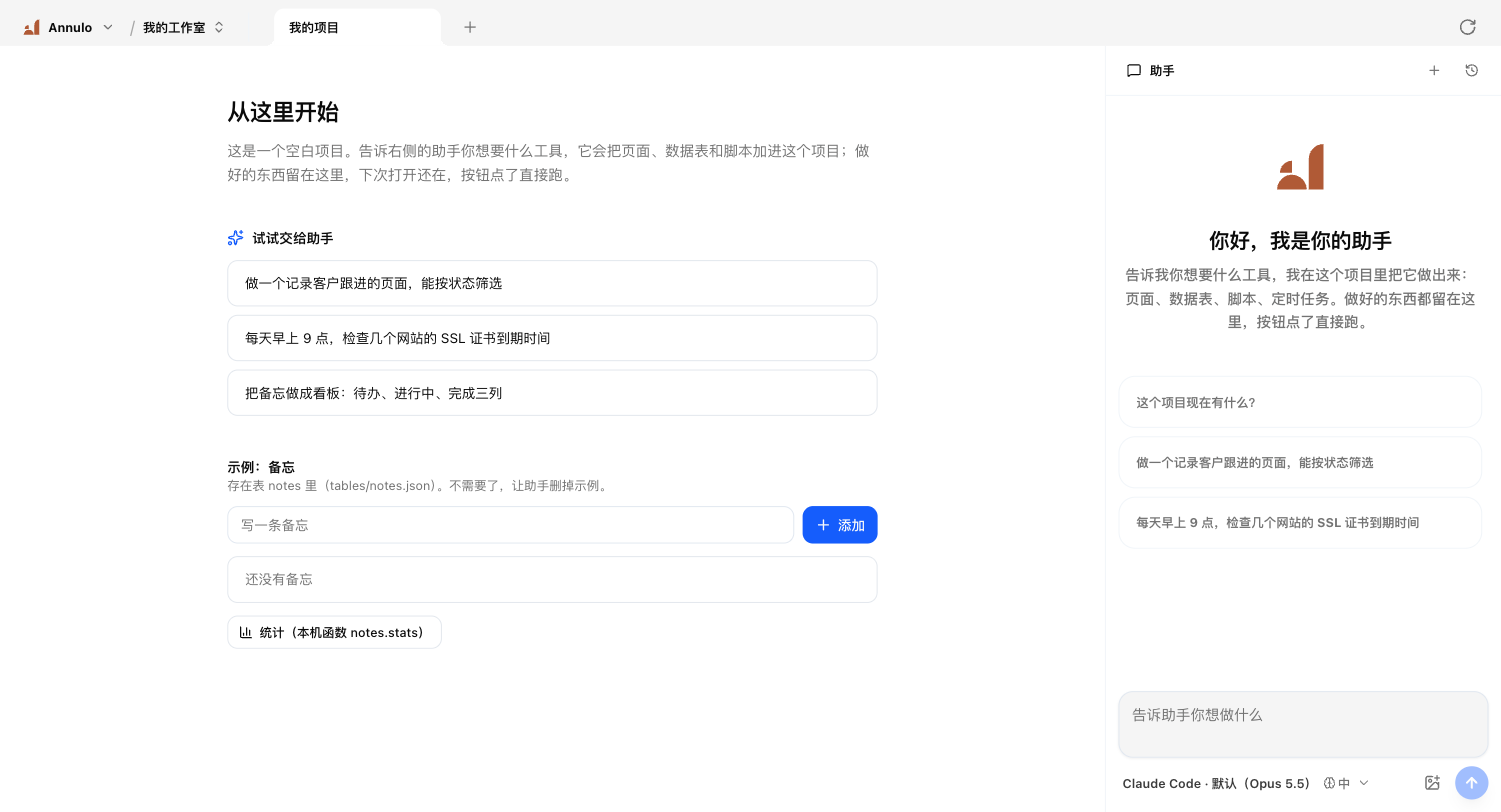
Your back office on the left, the assistant on the right: say what you need and it goes into the project.
What's in the window
- Your project's back office on the left: pages, tables and buttons, all files in this project, rendered by Annulo on your computer;
- The assistant on the right: it sees this project's data and code and can change them;
- Settings at the bottom left: projects, models, keys, connections, schedules, MCP, remote access and more. See Settings at a glance.
Ask for the first thing
Say it like you would to a colleague; no code needed. For example:
- "Make a page to track client follow-ups, filterable by status"
- "Remind me every morning at 9 who to follow up with"
- "Turn the price lists in this folder into a table"
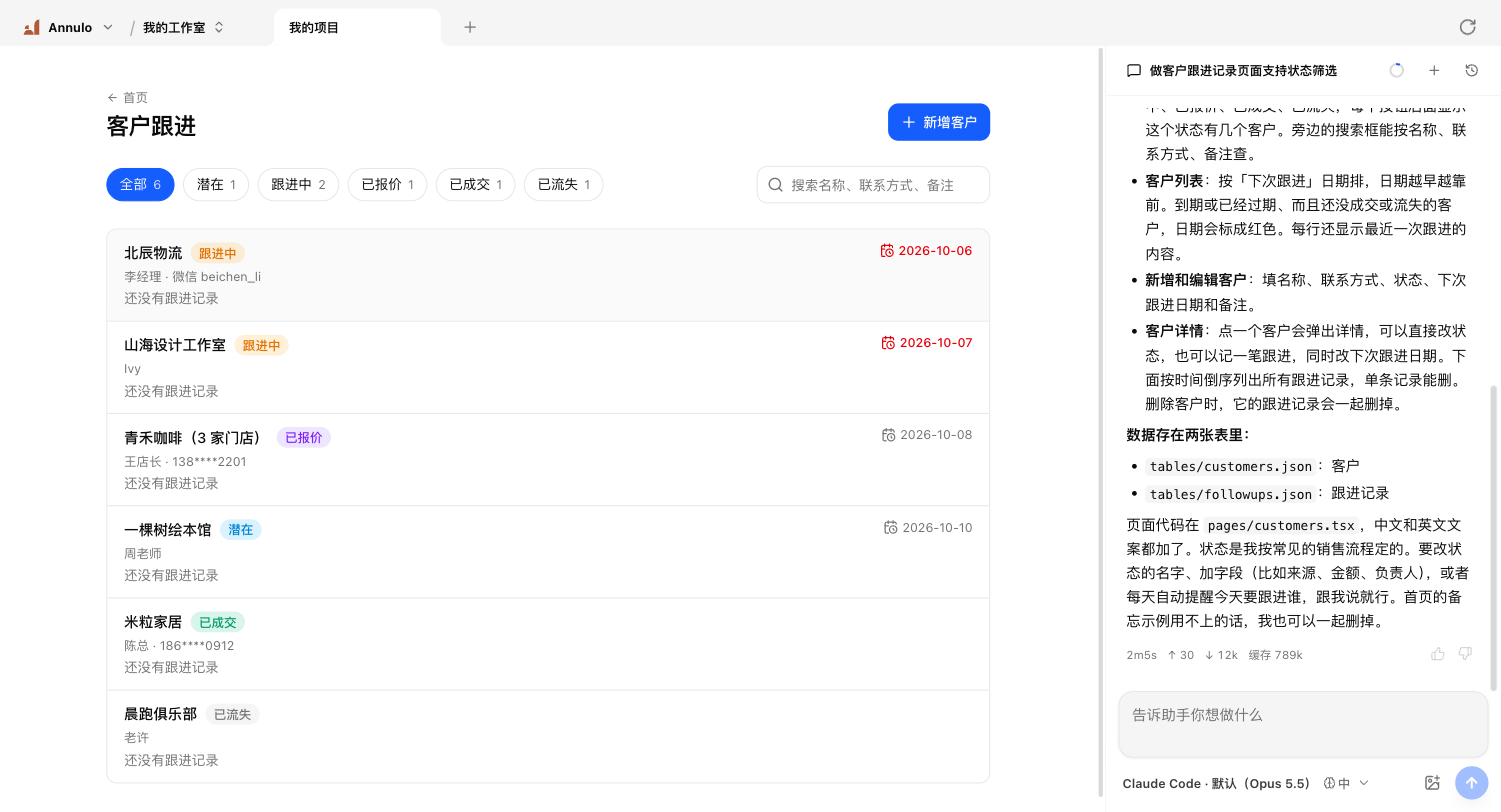
The assistant writes pages, tables, local functions and schedules into the project, and the back office on the left refreshes. What it builds stays in the project: it's there next time, and buttons run without going through the assistant.
Start from a template
A template is a whole ready-made back office. Each template has its own guide:
Projects made from a template can be reshaped by the assistant just the same.
If something breaks
Every round of changes goes into the project's git history. Tell the assistant "undo the last change" or "go back to yesterday's version".