The assistant and models
What the assistant can do, which model it uses, and how to set its rules.
What it can do
The assistant on the right runs on your computer and sees this project's data and code:
- Answer questions about your data: query tables, aggregate, draw charts;
- Build features: add pages, fields, buttons and schedules;
- Use what's on this computer: read your files, run command-line tools, use connected MCP servers;
- Fix page errors: when the back office shows an error, click "Ask the assistant to fix" at the top. Only then is the error sent to it;
- Run tasks: buttons that hand work to the assistant open a background chat; watch it on the right.
When it needs more information, it shows a few questions for you to pick or fill in, then carries on.
Pick a model
Settings → Models offers three kinds, and you can switch at the bottom of the chat any time:
- Your own provider: pick one, add an API key, tick the models you want. Keys stay on this computer;
- Local agent: Claude Code / Codex installed on this computer;
- creght platform models: available once creght is connected, billed in AI credits.
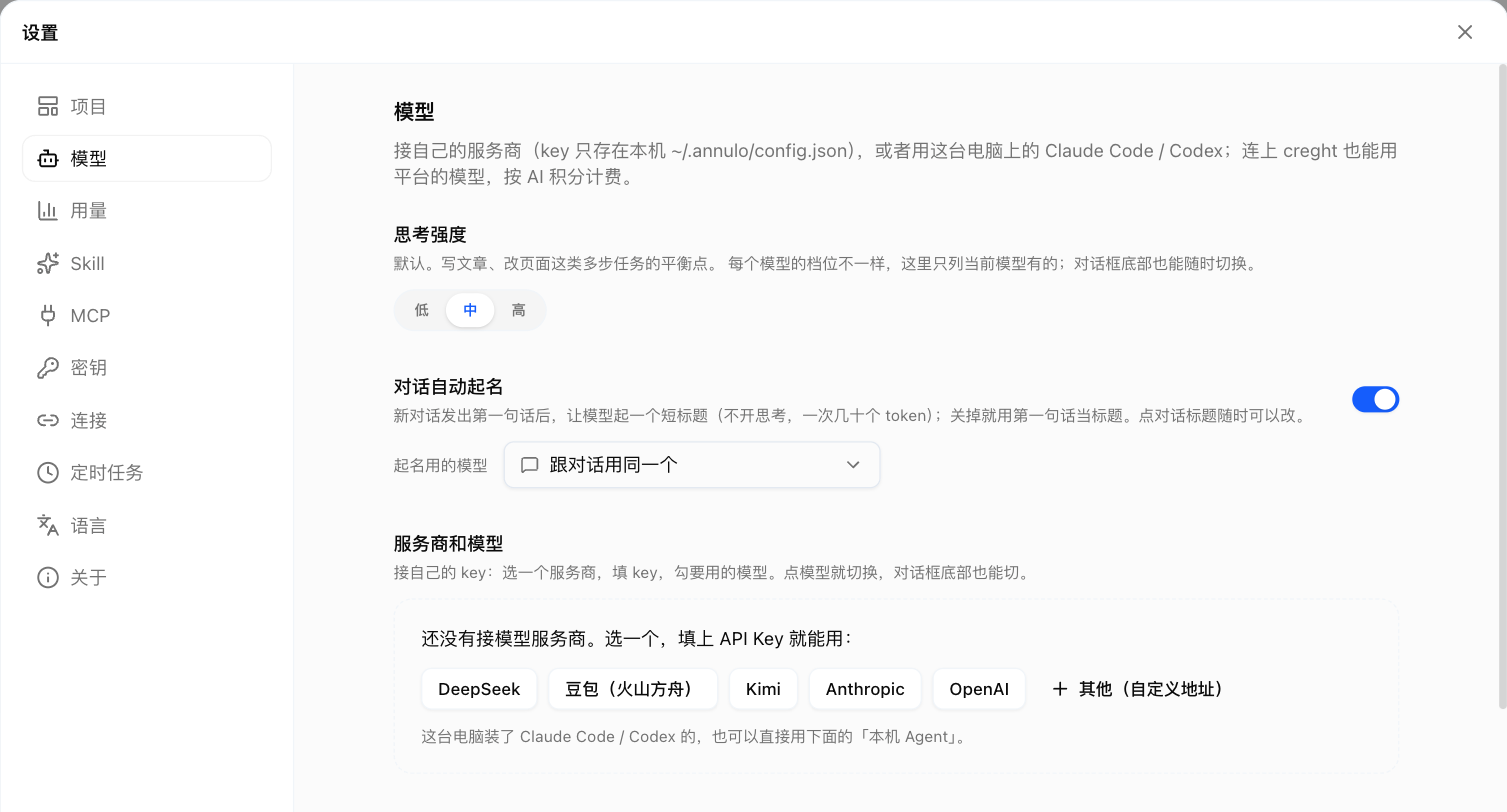
Token usage per model call is in Settings → Usage, recorded only on this computer.
Set its rules
- Instructions for the assistant: in Settings → Projects, write what you expect from the assistant in this project (style, things it must not do). It goes into the system prompt and wins over the project's own notes; template upgrades don't change it. Takes effect from the next new chat;
- Skills: manage instructions for the assistant in Settings → Skills. Only enabled skills enter its context.
What it won't do
- It can't read the values you store in Settings → Keys;
- It won't approve content for publishing on your behalf, or delete things on a platform, unless you explicitly ask.